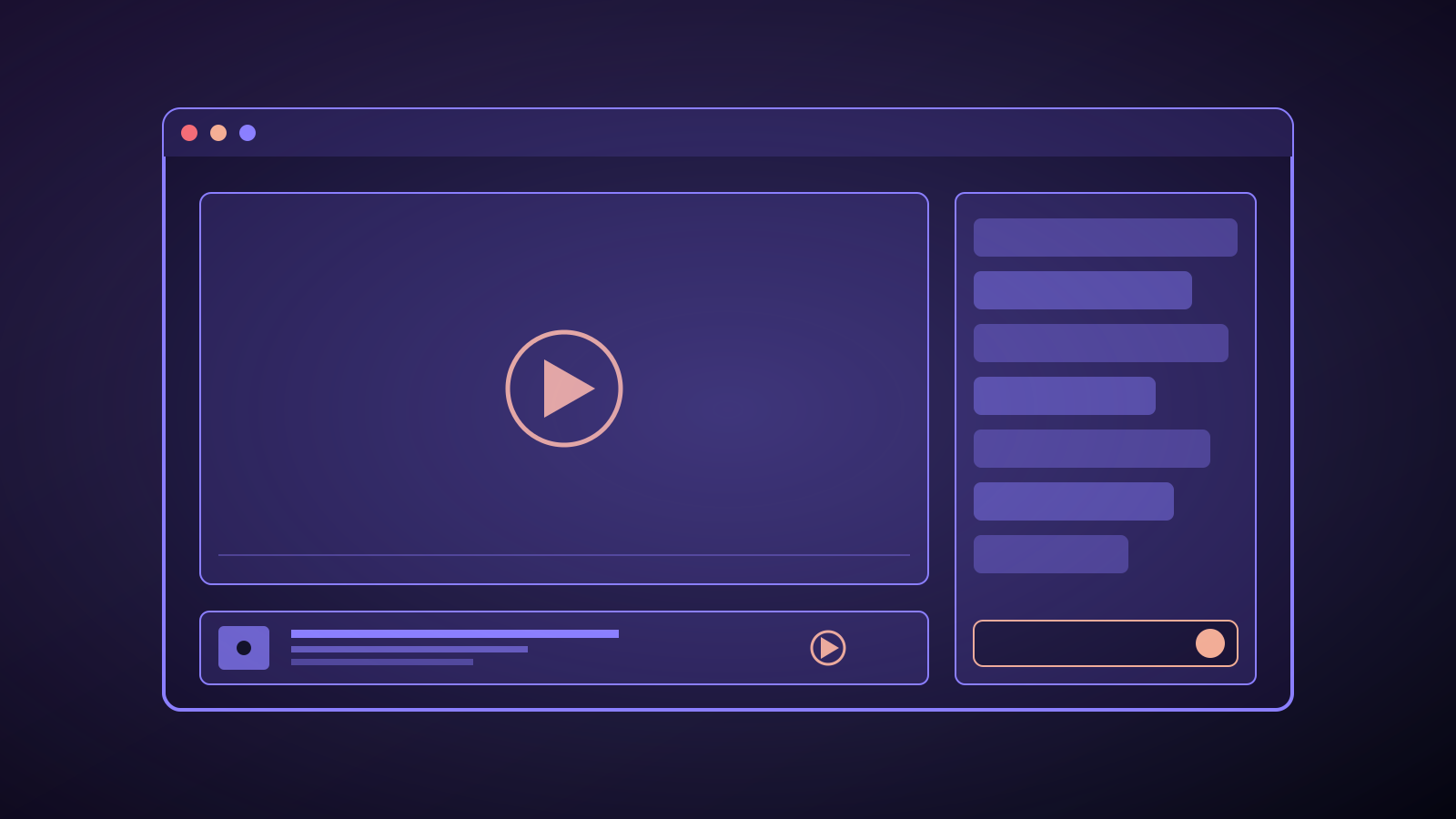
The overlay is the part of your lo-fi stream that every viewer sees, and the part most new operators think about last. That’s backwards. Your animation is the aesthetic; your overlay is the interface. It’s what tells a drive-by viewer what they’re watching, what track is playing, where the community lives, and whether this is a channel worth staying on.
This guide is the entire design playbook for lo-fi stream overlays — what to include, what to cut, how to lay it out, and why every top channel ends up at roughly the same three-zone structure even though they look nothing alike.
What the overlay is actually doing
The overlay has four jobs. Every element on your screen should map to at least one. Anything that doesn’t map to one is cognitive noise.
- Tell the viewer what this is. Channel name, category, vibe. Visible at the first frame, readable at 240p on a phone.
- Tell the viewer what’s playing. Track title, artist, album. Unambiguous attribution is also a legal and community hygiene move.
- Make the community discoverable. Discord, Patreon, merch, the relevant external links.
- Push a single clear next action. Subscribe, join, follow, support — one action, chosen deliberately, shown prominently.
If your overlay doesn’t do these four things clearly, it is not an overlay, it is decoration.
The three-zone structure
Open a handful of the top lo-fi streams and look past the art. Under the skin, almost every one uses the same three-zone layout:
Top zone — identity
The top of the frame (roughly the top 10%) is the identity zone. Channel name, tagline, and the one thing a first-time viewer needs to know about what they’re watching.
Keep it to two lines. One line with the channel name, one with a tagline or a mood (“focus beats · rainy night · study radio”). This zone rarely changes. It’s the billboard.
Middle zone — the visual
Roughly the central 75–80% of the frame. This is your animation layer — the visual loop — and it should stay almost untouched. Any text or graphic dropped into this zone fights the aesthetic and pulls attention away from the music.
The only things that should appear in the middle zone are ephemeral “moments” — a new subscriber celebration, a Super Chat, a track-change flash — and even those should fade out quickly.
Bottom zone — the interface
The bottom 10–15% is the interface. This is where the now-playing strip lives, the chat/community ribbon, the CTA button, and the social-link row. This is also the zone that changes most often — track titles rotate, chat highlights appear, CTAs can swap — and it’s the zone a viewer’s eye returns to every few minutes.
The discipline of the three-zone structure is mostly “don’t put things in the middle.” Everything else flows once you commit.
Exactly what to put in each zone
Let’s get specific. Here is the element-by-element design guide for a lo-fi stream overlay.
Identity zone elements
- Channel name — the biggest text on the frame. Distinctive font, consistent colour. This is your logo more than anything else.
- Tagline — one line, describes the mood or the content. “Rainy night study beats,” “Afternoon focus radio,” “Deep sleep ambient.” Not a slogan, a content descriptor.
- Category or rotation indicator — optional, useful if you run mood rotations. “Morning Block” or “Night Vibes” in a subtle corner tag. See mood rotations and time zones for why this matters.
- Subscriber count — optional. A visible sub counter can accelerate social proof on larger channels, but it signals low-status on smaller ones. Skip it until you’re past 10k subs.
Middle zone elements (should be empty)
- The animation, and only the animation.
- Exception: a new subscriber / Super Chat celebration that appears at the edge of the middle zone for 3–5 seconds, then fades.
- Exception: a track-change flash — a one-second highlight when a new song starts. Small, offset, out of the way.
Interface zone elements
- Now-playing strip — album art thumbnail, track title, artist name. Updates on every song change. This is the single highest-return element in the entire overlay.
- Chat ribbon or chat overlay — a thin strip showing the most recent 2–3 chat messages. Optional but effective for small channels trying to build community visibility.
- Primary CTA — one button-like element with a clear action. “Subscribe”, “Join Discord”, “Support on Patreon”. Only one at a time. Change it on a weekly rotation, not per-track.
- Social link row — small icons for the 2–3 most important external destinations. Don’t list everything; list the ones you actually want clicks on.
- Request form or Super Chat prompt — on channels that take song requests, a small “Request a track → /request” prompt. Must deliver on the promise or the prompt breaks trust.
Optional zone: corner widgets
Some channels add corner widgets that stand somewhat outside the three zones — weather for the fictional stream location, a fictional clock, an ambient temperature gauge. Handled well, these become trademark features. Handled badly, they’re clutter.
The rule: a corner widget is acceptable only if it reinforces the aesthetic. A clock that says “03:47 — Tokyo” on a rainy-Tokyo stream reinforces the fiction. A random “online listeners: 847” counter reinforces nothing.
Typography — the part everyone gets wrong
The overlay’s type is doing more work than anything else on screen, and most new channels use the wrong type for it.
What to look for in a lo-fi overlay font
- High readability at 240p. Your overlay will be viewed on phones, on sidebar thumbnails, on picture-in-picture players. If it’s unreadable at 240p vertical, it’s unreadable where it matters.
- A quiet voice. Lo-fi is not a genre of shouting. Your type should feel like it’s whispering. No bold sans-serifs designed for advertising, no hyper-stylized display fonts fighting the aesthetic.
- Latin + CJK coverage if your audience is global. Your listeners will leave Japanese, Thai, Arabic, and Cyrillic chat messages. Your overlay font (or a paired secondary) needs to render them without falling back to ugly system fonts.
- Consistent weight. Pick two weights max — a regular for information and a medium for titles. More than that starts to feel like a PowerPoint.
Fonts that work
Reliable starting points: Inter, IBM Plex Sans, Space Grotesk, Work Sans, PT Sans, Noto Sans for global coverage, JetBrains Mono for the now-playing strip if you want a “technical” feel. Every one of these is free, OFL-licensed, and well-made.
Avoid: default Arial/Helvetica (reads as lazy), Comic Sans (reads as troll), any hyper-modern variable font with 14 weights you’ll accidentally mis-use.
Font sizing
- Channel name: large — readable at 240p. If you can’t read it at 240p, double the size.
- Tagline: about 40–50% of channel name size.
- Now-playing track: medium — about the same weight as the tagline, different font family (mono) for visual separation.
- Chat ribbon: small — the chat is context, not content.
- Social icons: small, grouped tightly.
Colour — the quiet discipline
Lo-fi overlays use muted palettes. A common failure mode is using a bold brand colour from another context (corporate blue, hot pink, neon green) and watching it fight the animation.
The palette logic:
- Pull your overlay colours from the animation. The overlay should feel like it was made in the same design session as the loop.
- Use colour only where it carries meaning. The CTA can be slightly brighter than the rest. A track-change flash can tint warm. Everything else is muted.
- One accent colour, max. Pick it, use it on the CTA, use it sparingly elsewhere.
- Dark mode is not optional. Lo-fi overlays are dark by default. A light overlay in a lo-fi stream reads as a design error.
Motion discipline
The overlay can move. It mostly shouldn’t.
- Track-change transition. A 500ms fade/slide when the song changes. The most useful overlay motion.
- Sub/chat celebrations. A small pop, hold, fade. 3–5 seconds end-to-end.
- Subtle breathing on the CTA button. Optional — a slow pulse can increase click-through by a meaningful amount without being annoying. Tune carefully.
Never:
- A ticker that scrolls horizontally through the now-playing strip.
- A twitching, bouncing, shimmering CTA.
- A waveform visualizer. They feel dated in 2026 and they compete with the music.
- Animated emoji reactions that live on-screen persistently.
What to leave off
Every new channel loads the overlay with things that feel useful and actually hurt retention:
- Four different social icons + a QR code + a URL. Pick two.
- A rotating list of promo messages. Pick one CTA at a time.
- A big “LIVE” indicator. The platform already shows this. Redundant.
- Current viewer count. Brag-signals only help when the number is big; they hurt when it’s small.
- A donation goal bar. Reads as needy on a channel under 10k subs.
- Auto-generated “thank you for watching” captions. Overlays are not blog posts.
- AI-generated character portraits outside the middle zone. They fight the actual animation.
The overlay refresh schedule
A good overlay is not built once. It is maintained like any other product surface.
- Weekly: review the now-playing strip and fix any metadata gaps. Missing track titles destroy trust fastest of any overlay bug.
- Weekly: rotate the primary CTA. Subscribe → Join Discord → Support on Patreon → back to Subscribe.
- Monthly: review whether every overlay element still earns its place. Delete the ones that don’t.
- Quarterly: consider a small stylistic refresh — a new font for the now-playing, a new colour accent, a new widget.
- Yearly: major redesign that feels like an “edition bump.” Not a full rebrand, a visible evolution.
The platform quirks that bite
Every platform renders your overlay slightly differently. Know the quirks before the rendering error becomes a viewer complaint.
- YouTube live UI covers the bottom ~15% with controls when the viewer is hovering. Your interface zone has to coexist with this. Keep critical elements slightly above the very bottom edge.
- Twitch overlays the bottom with a chat window in many desktop configurations. If you stream to Twitch in addition to YouTube, your interface zone must survive a chat window chopping the right side.
- Mobile PiP views often crop to 16:9 center. Anything in the corners may not render. Keep the important elements toward the center edges, not the frame corners.
- Thumbnails show the middle of the frame. Your CTA in the bottom zone is not in the thumbnail. Your channel name in the top zone usually isn’t either. Design a thumbnail-friendly moment into your animation separately.
How this fits the rest of the channel
The overlay is the “interface” element of the 5 building blocks in the 24/7 lo-fi guide — specifically, it’s the top surface of the visual layer that sits next to your loop animation. A great overlay on a mediocre animation looks worse than a great animation with a mediocre overlay, but a great overlay on a great animation is the single biggest visual lever you have.
Adjacent categories to borrow from: the 24/7 anime stream pillar has some of the most aggressive overlay design in the entire 24/7 space, because anime audiences expect dense on-screen information. Some of what works there carries back to lo-fi with restraint.
What next
- Best Visuals and Loops for Lo-fi Streams — the animation layer that sits behind the overlay.
- How to Start a 24/7 Lo-fi Music Stream — the pillar hub tying all the building blocks together.
- The Copyright-Safe Guide to 24/7 Anime Streams — an adjacent genre with denser overlay conventions worth studying.
And when the design is ready, start a Streaminal free trial — upload the overlay assets and have them render identically to every destination the stream reaches.